How To Fix Webcam Problems
With broadband internet widely available, many PC users are actively using their webcams for video chatting and online meetings. Not only does the increased bandwidth facilitate the use of video over the internet, but improved webcams and better video compression also help a lot. But if your hardware is not working as it should be, a webcam is not much fun. So dealing with webcam problems can be a necessary evil. Webcam problems often simply mean there is no image to be seen, but in other cases, you might actually get an error message or will not be able to select the webcam as the video source in your programs.
In Windows Live Messenger, for example, you might get webcam error 0x8a70013, indicating a problem with the webcam device.
Steps to solve the webcam problems
Check the webcam connection
One of the very first steps is of course to check your webcam connection. Most webcams use the USB port to connect to the PC, so check if your USB cable is properly plugged in. For built-in webcams, these steps of course do not apply. Many new laptops have a built-in webcam. Also, try connecting your webcam directly to your PC instead of through a USB hub (if you are using one).
Enable the webcam
But don’t forget to check if you need to manually activate your webcam. In most cases, the webcam will be automatically activated by software that can use the webcam, but for some computer brands, it is necessary to press a certain key combination to activate the webcam (it will be a Function key, either with Alt or Ctrl or the Fn key, but check the laptop manual for details).
Some known key combinations:
<Fn> + <F9> (Alienware laptop webcams)
<Fn> + <F6> (Packard Bell laptops, MSI laptops, Lenovo laptops)
<Fn> + <F10> (Neo laptops, some Asus laptops)
Check the webcam in the Device Manager
The next thing to do is to check your Windows Device Manager and see if all hardware is recognized and installed properly. Use the Scan for hardware changes in the Action menu to make sure Windows lists all available hardware devices.
It might be that the hardware is recognized as a camera, but the right drivers are not installed. The yellow exclamation mark will indicate a problem.
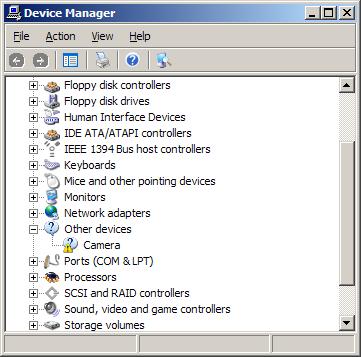
If the device is not recognized in Windows, it will be listed under Other Devices.
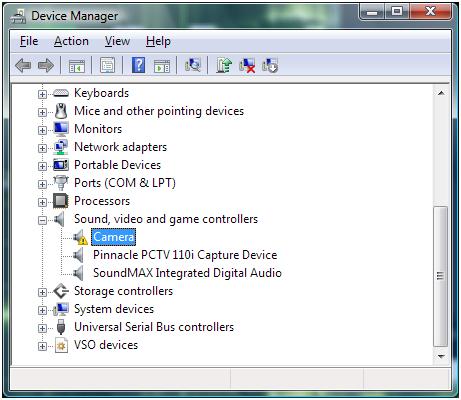
In either case, you can try to update the drivers. Right-click the device, and in the popup menu select Update Driver Software (in Windows 11 – Update driver). Then follow the instructions on screen, but make sure you allow Windows to search the web for updated drivers.
In case no driver for the webcam can be found, you can try a third-party driver-finding program that scans your PC for installed hardware and allows you to install missing drivers.
Reinstall the webcam software
If this fails, the next step would be to uninstall the software that came with your webcam. Use the Add or Remove Programs feature in the Control Panel. If that does not work you can use a third party uninstaller.
After uninstalling the software, restart your PC and then reinstall the webcam software. In most cases, this will solve the problems. Depending on the software, you might need to unplug your webcam during the software installation. For many HP systems, you need to install the CyberLink YouCam software, which can be downloaded from the HP site (for Windows 7 and Windows 8). This program allows you to check the webcam feed to see if it is working.
Check the software settings
If the drivers and webcam software are correctly installed, and you still cannot see any video, there can be a problem with the program settings. Most chat and meeting software have a configuration option to select the video source for the webcam feature. If you have multiple devices that qualify for video, you might need to select your webcam device as the source for the webcam feature in that program.
Some webcams and programs require additional software, although that should be installed with the webcam if things are right. But is does not harm to check if your Java, Flash (discontinued in 2019) and Quicktime software (version 7.6) are installed and up to date. But certainly check your DirectX software, since all video applications, including webcams, use DirectX for video processing. Try downloading the latest DirectX version and install it (Windows XP: DirectX 9.0c – Windows Vista: DirectX 10 (version 11 for Vista with SP2) – Windows 7: DirectX 11 – Windows 8, 8.1: DirectX 11.2 is only available through the Windows Update function – Windows 10: DirectX 11.3 and 12 are included with Windows and updates are only available through Windows update).
Manual focus correction
Lastly, if your webcam’s image is not sharp, check to see if it has a focus ring. A blurry image can sometimes simply mean the webcam is not in focus. Adjusting the focus through the ring can solve that problem.
Adjust video capture quality
Other picture quality problems with webcams can be addressed by changing the video capture properties for the webcam. Most programs that can use a webcam will have the option to access the properties of the video source, which will bring up the video capture properties window.
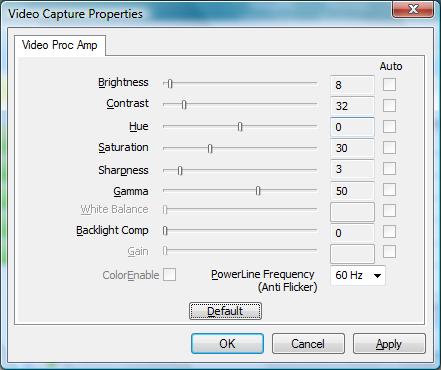
Do keep in mind that not all settings will be enabled depending on the webcam and the webcam driver installed on your computer. In the example, you can see that some settings are disabled. The example shows the video capture properties for an Acer Crystal Eye webcam.
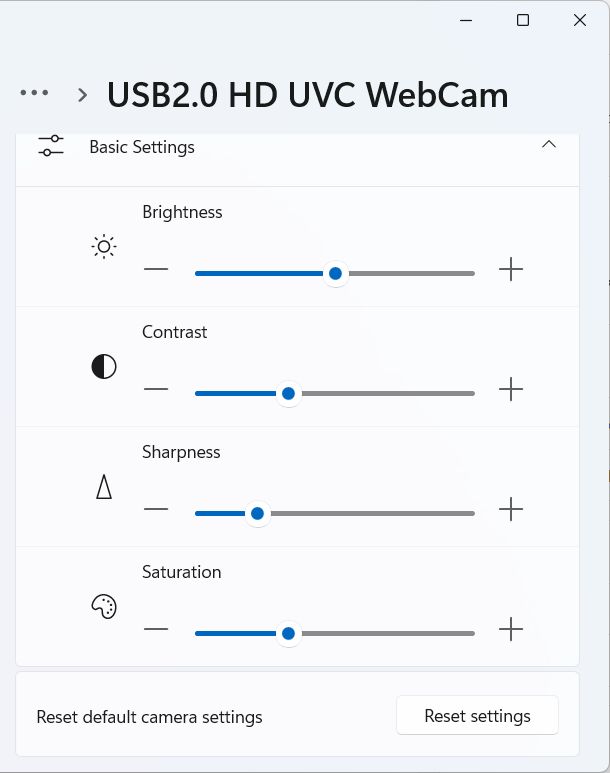
In Windows 11 the Camera properties look different. Access them by opening Settings from the Start menu, then select Bluetooth & devices in the left-hand pane, click Cameras in the right-hand pane, and then click your camera.
Camera Privacy Settings Causing Webcam Problems
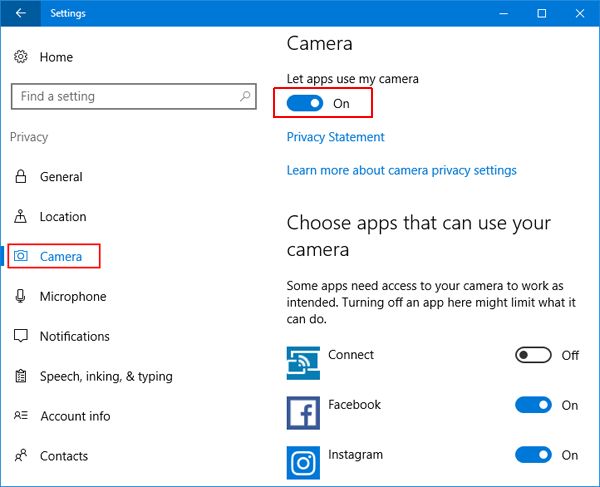
Starting with Windows 8.1 (and Windows 10) there is a privacy setting in Windows that allows (or blocks) access to the camera. If access to the camera is blocked to Apps, your webcam will not work in certain applications.
Here are the steps to ensure that the camera is not blocked in Windows 10:
- From the Start menu, select Settings.
- In the Settings window, click on Privacy.
- Make sure that the setting for Let my apps use my camera is turned On.

Fix Flipped Camera Issues
Having the image from the camera shown as mirrored or upside down has been a long-time problem on some Windows-compatible webcams. In most cases, the right device driver for the camera will fix the issue.
If the camera image is not showing correctly, or changes to an incorrect image when using it to capture video, try the options below to fix it.
Registry tweak to flip camera
Although this solution is not applicable to all webcams, it is good to check if it is applicable in your case.
- Open the Registry Editor using the Windows + R keys and then type
regeditin the Run box. Press Enter or click the OK button. - In the Registry Editor, select the top-level entry (Computer), and then use the File menu Export option to make a backup of the registry.
- Next, locate the following registry entry:
HKEY_LOCAL_MACHINE\SYSTEM\CurrentControlSet\Control\Class\
{6BDD1FC6-810F-11D0-BEC7-08002BE2092F}\0000\VIDEOPROCAMP - With the key selected, change entry in the right-hand panel called
HFLIPfrom 0 to 1 (or from 1 to zero, depending on the current value). If the entry does not exist, you can create a new DWORD (32-bit) Value with that name.
Note: Use theVFLIPentry for a vertical flip.
If you cannot find the key, this option probably will not work for your webcam.
Use software settings to flip the camera
If you cannot get the webcam image corrected in Windows itself, using the driver, settings, or registry tweak, you can often use program settings to correct the webcam image.
Do keep in mind that many video chat programs show you the mirrored image of the webcam while people on the other end see the correct image of you. So consider if it is really something that needs to be addressed!
In Zoom you can toggle video mirroring to change the image.
- Click the up arrow in the Video button on the Zoom meeting window.
- Select the Video Settings option in the popup menu.
- In the Video settings pane, unmark the option Mirror my video.
- Close the Video settings pane.
- Close and restart Zoom (close it completely from the Taskbar icon).


If you prefer working with web-based interfaces for online meeting and chat programs like Zoom, Google Meet, and others, installing a browser plugin or extension is the better way to go. For Chrome, there is VideoMirror, which is free and supports camera mirroring. There are others, but make sure to check that the mirror function is available in the free version before you install it.
If you are using your webcam for instant messaging / video chatting with one of the popular chat programs, have a look at ManyCam, which allows you to record your webcam but also allows screen recording, which allows you to record any video stream! Third-party programs like ManyCam act as a virtual webcam and even work to mirror the camera image in Discord, which is not otherwise possible.
Windows 10 Camera Problems
In one of the initial Windows 10 updates, a camera problem was introduced that needed a specific fix. The update causes the camera to stop working in most apps trying to use it. The update pertained to the Windows Frame Server Mode for processing webcam images. Microsoft disabled support for webcams using MJPEG and H264 compression. The way to address this is to disable the Frame Server Mode to allow it to work.
- Open the Registry Editor in Windows.
- Make a backup of the registry using the File -> Export option.
- Navigate to the following registry key:
HKEY_LOCAL_MACHINE\SOFTWARE\Microsoft\Windows Media Foundation\Platform - Right-click in the left-hand pane and select New in the popup menu.
- Select DWORD (32-bit) Value and enter the
EnableFrameServerModeas the name. - The value should be zero (0) by default, if not, change it to zero (0) by double-clicking the new key.
- If you are running a 64-bit version of Windows, you need to repeat these steps for the following registry key:
HKEY_LOCAL_MACHINE\SOFTWARE\WOW6432Node\Microsoft\Windows Media Foundation\Platform - Close the Registry Editor and check if the camera issue is fixed.


A restart of Windows should not be required, but if the fix does not work, restart Windows to make sure the changes take effect.
Realtek Webcam Problems
If your Windows system is using a webcam that is using Realtek components, a specific problem can occur. The Windows service host will report errors that report the camera frame service terminated unexpectedly. The error is caused by a Realtek driver file (RsProvider.dll). The file resides in the path: C:\Program Files\Realtek\RsProviders\RsProvider.dll (unless your system drive is not the C-drive).
You can either delete or rename the RsProviders folder or try a registry option to disable it. Lenovo provides a patch for its affected systems to disable it. The patch removes the following key:
HKEY_LOCAL_MACHINE\SOFTWARE\Microsoft\Analog\Providers\RsProvider
Before you change the registry, make a backup! If you decide to delete the RsProvider folder, also make a backup first (the better option is to try and rename it first).
Windows 11 Camera Troubleshooter
Microsoft has included a troubleshooter feature in Windows 10 and Windows 11 that can help fix common problems. So, if you experience a camera-related problem in one of these Windows versions, run the Camera Troubleshooter first.
- Open the Settings from the Start menu.
- Select Bluetooth & devices in the left-hand pane.
- Click Cameras in the right-hand pane.
- Select your Camera (USB2.0 HD UVC WebCam in the example).
- Click the Troubleshoot button.

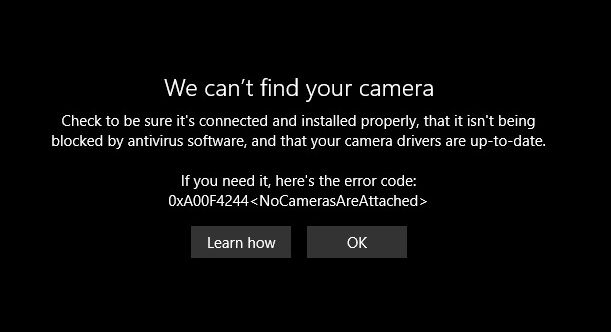
Errors that can be solved this way include the 0xA00F4244 error showing NoCamerasAreAttached. The Camera window will show the message “We can’t find your camera“.
A second frequent error in Windows 10 and Windows 11 relating to the webcam is error 0xA00F429F WindowsShowFailed. The message, in this case, is “Can’t start your camera“.
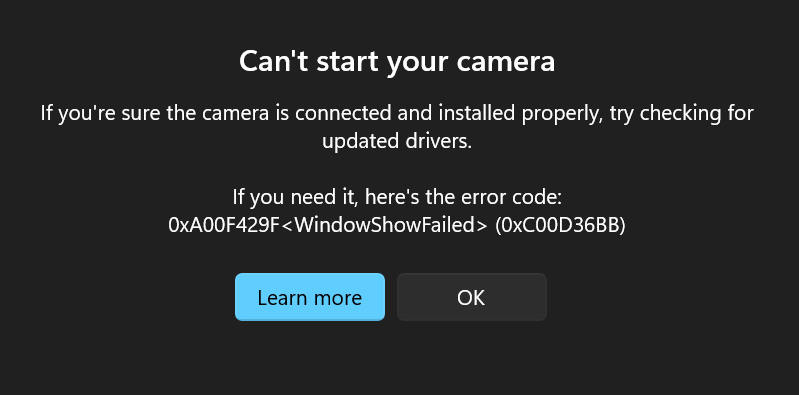
In most cases, this is an App access issue (permissions), but just run the troubleshooter to see if it can be fixed by Windows automatically.


@nat – The first thing to check is the webcam driver. Just check if you have the exact same driver version as the others who do not have the problem. If not, make sure to install the same driver.
@Sam Courtney – So your webcam does not show up in any program that is capable of using webcams?
If so, check if there is any other video device installed (like a TV card) and try disabling that in the device manager. Also try downloading and reinstalling DirectX.
Hi Kyle I really hope you can help. I have a fujitsu siemens laptop and have been using for about a year. I am a total novice to webcams and therefore i do not know where to even start in order to resolve this issue. The laptop is running MS VISTA. Whenever I go onto cyberlink power dv, its tells me that no camera device has been detected and that I should reconnect and retry. I have had a look at some of the above comments and have tried to follow the advise you have given others. I have checked that the webcam is switched on (Fn+F7), I have tried pressing Fn+F10 (I’m not sure what this is for but you had suggested this to someone else). I have checked the device manager and the webcam is listed in there and there are no yellow warning triangles next to it – however i have noticed that the webcam is not listed when you select to view scanners/cameras. Please help as all your asisstance will be much appreciated.
i received a hp laptop from my school. it has a biult in webcam with it
everytime i go to use it the picture is blurry and looks pixilated. i have changed the settings on it back to default but it still turns out blurred, even if i am not moving the laptop at all.
also it freezes alot.
no one else has this problem
@Erik – Disabling and re-enabling devices can indeed help, works great for fixing network device problems as well. Thanks for reporting back your findings.
Regarding the automation, the obvious answer is to program it. You could use the service control manager and disable/enable the related service, or you could change the registry using the appropriate API. There are some samples around online.
@IvoBg – The audio recording level is indeed something to check first. Other than that, you should check the USB ports. Try unplugging all USB devices other than the webcam, do not use a USB hub, and check the bios for the USB settings (should be USB 2.0). Have you tried a different chat program, other than MSN messenger? If possible, check YM or Skype to see if the problem is software related.
@Kyle (author):
After more troubleshooting, I found the likely culprit: the webcam drivers. Once the problem manifested itself again, I tried disabling and re-enabling each webcam driver in Device Manager (under Imaging Devices). I did not reinstall any software. I didn’t reboot as Windows insisted. I simply restarted H264WebCam instead afterwards. All the cameras worked great again, without having to reboot. Now, I need to figure out how to automate the device driver disable/enable process… (any ideas?).
Microsoft designed the drivers… go figure.
Your help is appreciated. Thank you very much.
@IvoBg:
This may seem obvious, but have you checked the microphone volume level? Control Panel -> Sound -> Recording Devices.
Hello, a month ago I bought a camera a4tech pk 720mj, which has a built in microphone. I installed the driver for the camera as well as writing in instructions. My problem is the following, I use MSN Messenger for video chat, after 5 minutes video chat microphone to the camera blocking, on the other side see me but not hear me. Driver for the camera I took it from the official site of A4TECH, but this did not help. I hope you can help me.
Greetings and sorry for my bad English!
@Erik – I am obviously not aware of such a specific setup, but have you tried using a (powered) USB hub to make sure the USB power limitation is not an issue? You probably need to check if the hub is USB 2.0 compatible and also check the specific power settings for each of the hub ports as they can very a lot.
Other than that I would also think it could be the power settings on the USB devices and the overall PC power scheme, but you seem to have verified that already.
I have 4 Microsoft Lifecam VX-1000 webcams hooked to my PC. They are used for 24/7 surveillance. Each has a USB-to-Ethernet extension cable adapter to extend the cable distance to 50′ (can work up to 150′). In conjunction with H264WebCam, the system works very well. I’ve confirmed it to work for 12 hours straight typically. However, when I come home from work at night, I notice at least one camera is not powered on, even though the software may show an old frame from hours before. If I restart the software, none of the webcams work anymore. Re-plugging the USB cables doesn’t work; if I do, Windows says the devices are unrecognized and that there may be a problem with them. Trying to reset the hubs (which are integrated into the motherboard) via Device Manager doesn’t work. I’ve used the newest drivers as well as older ones. The cabling continuity is good. I’ve tried load balancing by putting some cams on other ports. I’ve disabled selective suspend (power save options). I’m streaming at only 15 fps per camera to conserve USB bandwidth. All these troubleshooting attempts have failed at solving the issue. The only way to resolve is to reboot. After rebooting, everything works great again for hours. I could schedule daily reboots but this is unfeasible as the PC is not dedicated just for surveillance (I game as well). It doesn’t matter what software runs or not, the problem persists. I believe it’s a USB power issue, or maybe the cams ‘fall asleep’ during the evening hours when no motion is detected in darkness.
My system: Asus M4A79T motherboard, AMD Phenom II X4 955 at stock (3.2 GHz), 8 GB. DDR3-1333 RAM, ATI Radeon 4870 2 GB. PCIe video, USB card reader, Logitech RumblePad 2, 850-watt Corsair power supply. Only 3 months old.
@Andrew – Is your computer set for USB 2.0 ports? You can check this in the bios.
Also try updating the drivers on the USB Root hub in the Device Manager.
Are you using any other USB devices? Try using the webcam only to see if there is a conflict with another USB device (I think this is the least likely scenario, but no harm in trying it).
I read your infomative article about webcam problems. How would you solve this?
Purchased a Microsoft Webcam (lifecam vx5000). Downloaded updated software from their site. At the point of installation where you are asked to connect the device to a usb port, the blue screen of death appeared. The webcam works just fine on another computer whether it is installed with or without the software.
Thanks.
@Nicole – If the webcam is working and you have the right driver, there is not too much you can do. In general, ensure the webcam is connected to a USB 2.0 port (and do not use a USB hub), and try changing the image size of the webcam (in the software) if possible.
Hi! So, I have a problem. I wanted to buy a new webcam for my computer, but my mom found an old one in our house and so Im using that one. I installed it an everything was great, until I realized that it had horrible picture quality. I’ve tried different lighting, fixed the brightness, contrast etc. AND the webcam either doesn’t have a manual focus, or its broken. Is there any way I can fix it without buying a new webcam? PLEASE PLEASE HELP!
Thanks a bunch,
Nicole
@Lawrence – Does the webcam show in your Device Manager and can you use it in other programs? Also check if you have other video input devices (like a TV Card), as you might need to disable them in order for some programs to allow you to work with the webcam.
@Sunitsa – Try disabling the buitl-in webcam in the Device Manager.
Hi Kyle!. I just purchased a Logitech quickcam to Skype with, as the built in webcam on my crappy Acer is no good. I installed it the other day and it was working fine, but now my computer will not detect it. It will only pick up the built-in webcam. I know it is working because it allowed me to take pictures when I clicked on the icon in My Computer, but even when I click on the Logitech Quickcam, it still only detects the built-in cam. Please help! I’m away from home at university and I miss talking to my friends and fam :( Any suggestions? I have NO idea how to fix this.
Hi Kyle
I Just recently downloaded Windows Live Messenger 9.0 and once i come to use
the webcam it doesn’t work and wont even let me open the
audio and video setup. Would you be able to help please?
Thanks
@Gerard Scullion – You mean the webcam? Well if it is indeed new, you could try and take it back to see if they can either test it for you or replace it.
But it is definitely a hardware driver issue. One thing you could try is to right-click the Unkown Device in the Device Manager, and in the popup menu select Update Driver. Opt to browse on your computer and then select from list. In the show compatible hardware, the technika driver should be listed.
Hi Kyle,
Thanks for the very fast response. I followe the link, downloaded the driver and installed it on a completely different computer with win xp and still the same message:-
One of the USB devices attached to this computer has malfunctioned, and Windows does not recognise it.
The location of the device is shown in bold type.
USB Root Hub (2 ports)
Unknown Device (in bold)
Unused Port
Recommendation
Try reconnecting the device. If Windows still does not recognise it, replace the device.
When it is plugged in, the power light on the camera is illuminated so power is getting to it and the driver you suggested for me to download is exactly the same as the one on the CD provided. Could it be a dud?
@Gerard Scullion – Have you tried http://rapidshare.com/files/215871588/Technika_H16WC-01.zip ? That driver seems to work for a lot of people.
Sorry forgot to say my OS is Windows XP
Regards
Gerard
I recently purchased a technika H16WC-01 webcam from Tesco (I know, but I needed one in a hurry) and have installed the driver and software. When I plug in the camera, I get a message that one of my USB devices has malfunctioned and when I check the devices it lists the camera as ‘Unknown Device’. I have tried uninstalling, reinstalling, downloading drivers from the Tesco site and everything I know but still the same. I have tried this on my laptop and my desktop and both give the same error. From the Tesco site I noticed a lot of driver problems but none address my problem, can you help please.
@Dr . Ruban – The first thing to do is to check if you are both using the same version of msn messenger (or live messenger) and if it is different, make it the same (upgrade one of them).
i m using msn ,to chat,,but when i trying to view the other person web cam to whom i m chating ,,i cant see the cam & the other person also cant see me,,even we send cam invitation to see each other,,,,plzz solve my problem,,,i will be most thankful to u,,
I’m not really sure what happnened, but I woke up and the computer was off, so I turned it on and it was running some updates. After that I went into devices and the HP Webcam was there, but wasn’t working stiil, the computer still said it had some updates to do and then it restarted itself. After I logged on again, the webcam now works…..I don’t know what happened but it seems to be working!!
Thank you for your time and help! Your aweseom!
who knows I might be back for help!
Nothing really shows up when I click properties.
(Standard USB Host Controller)
Universal Serial Bus controllers
But I’ll try the drivers on at the HO site.
@theo – That indeed indicates that the (right) webcam driver is not yet installed.
The link to the HP support website that I gave in comment #342 should allow you to download the driver for the webcam (just pick the right Windows version and check the webcam download).
I think your webcam is a Chicony model. You might be able to see that in the Device Manager. Click the unknown device and select properties. In the Details tab, select the Manufacturer in the Property list.