How To Fix Webcam Problems
With broadband internet widely available, many PC users are actively using their webcams for video chatting and online meetings. Not only does the increased bandwidth facilitate the use of video over the internet, but improved webcams and better video compression also help a lot. But if your hardware is not working as it should be, a webcam is not much fun. So dealing with webcam problems can be a necessary evil. Webcam problems often simply mean there is no image to be seen, but in other cases, you might actually get an error message or will not be able to select the webcam as the video source in your programs.
In Windows Live Messenger, for example, you might get webcam error 0x8a70013, indicating a problem with the webcam device.
Steps to solve the webcam problems
Check the webcam connection
One of the very first steps is of course to check your webcam connection. Most webcams use the USB port to connect to the PC, so check if your USB cable is properly plugged in. For built-in webcams, these steps of course do not apply. Many new laptops have a built-in webcam. Also, try connecting your webcam directly to your PC instead of through a USB hub (if you are using one).
Enable the webcam
But don’t forget to check if you need to manually activate your webcam. In most cases, the webcam will be automatically activated by software that can use the webcam, but for some computer brands, it is necessary to press a certain key combination to activate the webcam (it will be a Function key, either with Alt or Ctrl or the Fn key, but check the laptop manual for details).
Some known key combinations:
<Fn> + <F9> (Alienware laptop webcams)
<Fn> + <F6> (Packard Bell laptops, MSI laptops, Lenovo laptops)
<Fn> + <F10> (Neo laptops, some Asus laptops)
Check the webcam in the Device Manager
The next thing to do is to check your Windows Device Manager and see if all hardware is recognized and installed properly. Use the Scan for hardware changes in the Action menu to make sure Windows lists all available hardware devices.
It might be that the hardware is recognized as a camera, but the right drivers are not installed. The yellow exclamation mark will indicate a problem.
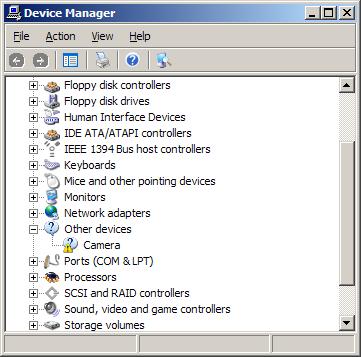
If the device is not recognized in Windows, it will be listed under Other Devices.
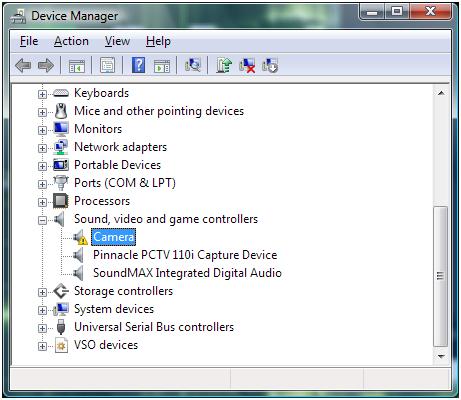
In either case, you can try to update the drivers. Right-click the device, and in the popup menu select Update Driver Software (in Windows 11 – Update driver). Then follow the instructions on screen, but make sure you allow Windows to search the web for updated drivers.
In case no driver for the webcam can be found, you can try a third-party driver-finding program that scans your PC for installed hardware and allows you to install missing drivers.
Reinstall the webcam software
If this fails, the next step would be to uninstall the software that came with your webcam. Use the Add or Remove Programs feature in the Control Panel. If that does not work you can use a third party uninstaller.
After uninstalling the software, restart your PC and then reinstall the webcam software. In most cases, this will solve the problems. Depending on the software, you might need to unplug your webcam during the software installation. For many HP systems, you need to install the CyberLink YouCam software, which can be downloaded from the HP site (for Windows 7 and Windows 8). This program allows you to check the webcam feed to see if it is working.
Check the software settings
If the drivers and webcam software are correctly installed, and you still cannot see any video, there can be a problem with the program settings. Most chat and meeting software have a configuration option to select the video source for the webcam feature. If you have multiple devices that qualify for video, you might need to select your webcam device as the source for the webcam feature in that program.
Some webcams and programs require additional software, although that should be installed with the webcam if things are right. But is does not harm to check if your Java, Flash (discontinued in 2019) and Quicktime software (version 7.6) are installed and up to date. But certainly check your DirectX software, since all video applications, including webcams, use DirectX for video processing. Try downloading the latest DirectX version and install it (Windows XP: DirectX 9.0c – Windows Vista: DirectX 10 (version 11 for Vista with SP2) – Windows 7: DirectX 11 – Windows 8, 8.1: DirectX 11.2 is only available through the Windows Update function – Windows 10: DirectX 11.3 and 12 are included with Windows and updates are only available through Windows update).
Manual focus correction
Lastly, if your webcam’s image is not sharp, check to see if it has a focus ring. A blurry image can sometimes simply mean the webcam is not in focus. Adjusting the focus through the ring can solve that problem.
Adjust video capture quality
Other picture quality problems with webcams can be addressed by changing the video capture properties for the webcam. Most programs that can use a webcam will have the option to access the properties of the video source, which will bring up the video capture properties window.
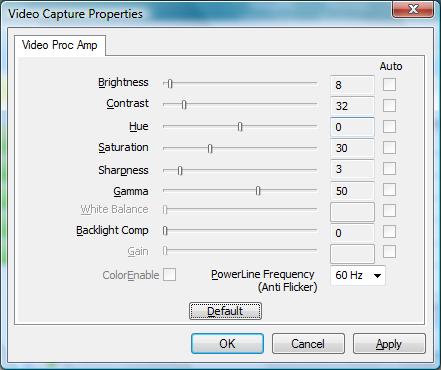
Do keep in mind that not all settings will be enabled depending on the webcam and the webcam driver installed on your computer. In the example, you can see that some settings are disabled. The example shows the video capture properties for an Acer Crystal Eye webcam.
In Windows 11 the Camera properties look different. Access them by opening Settings from the Start menu, then select Bluetooth & devices in the left-hand pane, click Cameras in the right-hand pane, and then click your camera.
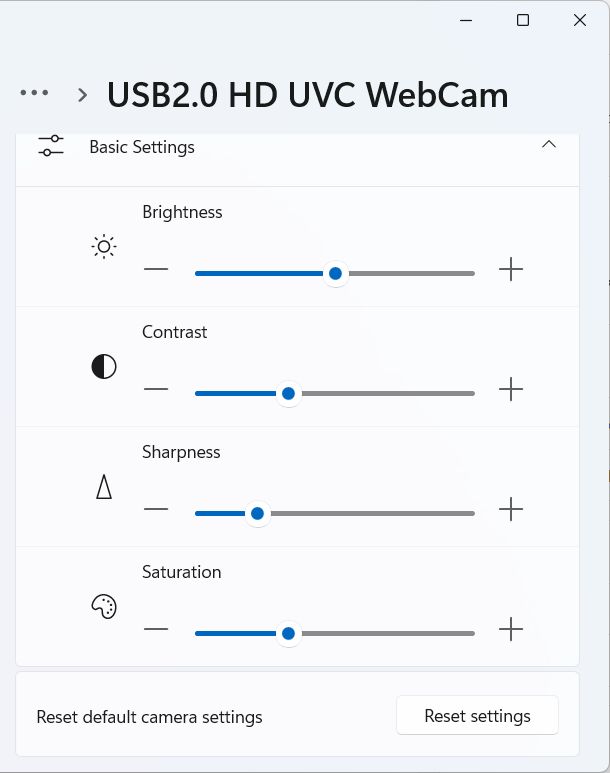
Camera Privacy Settings Causing Webcam Problems
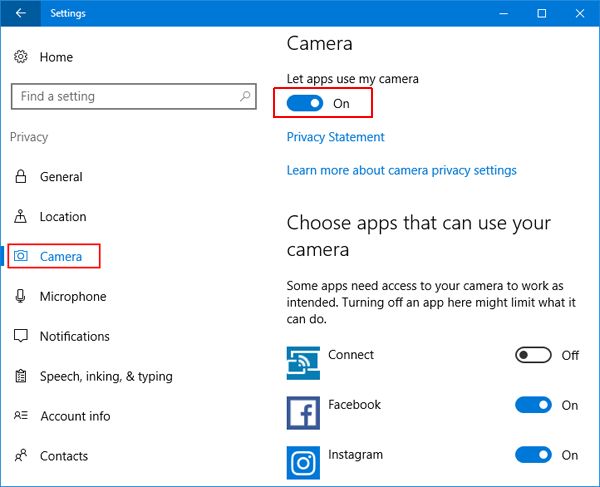
Starting with Windows 8.1 (and Windows 10) there is a privacy setting in Windows that allows (or blocks) access to the camera. If access to the camera is blocked to Apps, your webcam will not work in certain applications.
Here are the steps to ensure that the camera is not blocked in Windows 10:
- From the Start menu, select Settings.
- In the Settings window, click on Privacy.
- Make sure that the setting for Let my apps use my camera is turned On.

Fix Flipped Camera Issues
Having the image from the camera shown as mirrored or upside down has been a long-time problem on some Windows-compatible webcams. In most cases, the right device driver for the camera will fix the issue.
If the camera image is not showing correctly, or changes to an incorrect image when using it to capture video, try the options below to fix it.
Registry tweak to flip camera
Although this solution is not applicable to all webcams, it is good to check if it is applicable in your case.
- Open the Registry Editor using the Windows + R keys and then type
regeditin the Run box. Press Enter or click the OK button. - In the Registry Editor, select the top-level entry (Computer), and then use the File menu Export option to make a backup of the registry.
- Next, locate the following registry entry:
HKEY_LOCAL_MACHINE\SYSTEM\CurrentControlSet\Control\Class\
{6BDD1FC6-810F-11D0-BEC7-08002BE2092F}\0000\VIDEOPROCAMP - With the key selected, change entry in the right-hand panel called
HFLIPfrom 0 to 1 (or from 1 to zero, depending on the current value). If the entry does not exist, you can create a new DWORD (32-bit) Value with that name.
Note: Use theVFLIPentry for a vertical flip.
If you cannot find the key, this option probably will not work for your webcam.
Use software settings to flip the camera
If you cannot get the webcam image corrected in Windows itself, using the driver, settings, or registry tweak, you can often use program settings to correct the webcam image.
Do keep in mind that many video chat programs show you the mirrored image of the webcam while people on the other end see the correct image of you. So consider if it is really something that needs to be addressed!
In Zoom you can toggle video mirroring to change the image.
- Click the up arrow in the Video button on the Zoom meeting window.
- Select the Video Settings option in the popup menu.
- In the Video settings pane, unmark the option Mirror my video.
- Close the Video settings pane.
- Close and restart Zoom (close it completely from the Taskbar icon).


If you prefer working with web-based interfaces for online meeting and chat programs like Zoom, Google Meet, and others, installing a browser plugin or extension is the better way to go. For Chrome, there is VideoMirror, which is free and supports camera mirroring. There are others, but make sure to check that the mirror function is available in the free version before you install it.
If you are using your webcam for instant messaging / video chatting with one of the popular chat programs, have a look at ManyCam, which allows you to record your webcam but also allows screen recording, which allows you to record any video stream! Third-party programs like ManyCam act as a virtual webcam and even work to mirror the camera image in Discord, which is not otherwise possible.
Windows 10 Camera Problems
In one of the initial Windows 10 updates, a camera problem was introduced that needed a specific fix. The update causes the camera to stop working in most apps trying to use it. The update pertained to the Windows Frame Server Mode for processing webcam images. Microsoft disabled support for webcams using MJPEG and H264 compression. The way to address this is to disable the Frame Server Mode to allow it to work.
- Open the Registry Editor in Windows.
- Make a backup of the registry using the File -> Export option.
- Navigate to the following registry key:
HKEY_LOCAL_MACHINE\SOFTWARE\Microsoft\Windows Media Foundation\Platform - Right-click in the left-hand pane and select New in the popup menu.
- Select DWORD (32-bit) Value and enter the
EnableFrameServerModeas the name. - The value should be zero (0) by default, if not, change it to zero (0) by double-clicking the new key.
- If you are running a 64-bit version of Windows, you need to repeat these steps for the following registry key:
HKEY_LOCAL_MACHINE\SOFTWARE\WOW6432Node\Microsoft\Windows Media Foundation\Platform - Close the Registry Editor and check if the camera issue is fixed.


A restart of Windows should not be required, but if the fix does not work, restart Windows to make sure the changes take effect.
Realtek Webcam Problems
If your Windows system is using a webcam that is using Realtek components, a specific problem can occur. The Windows service host will report errors that report the camera frame service terminated unexpectedly. The error is caused by a Realtek driver file (RsProvider.dll). The file resides in the path: C:\Program Files\Realtek\RsProviders\RsProvider.dll (unless your system drive is not the C-drive).
You can either delete or rename the RsProviders folder or try a registry option to disable it. Lenovo provides a patch for its affected systems to disable it. The patch removes the following key:
HKEY_LOCAL_MACHINE\SOFTWARE\Microsoft\Analog\Providers\RsProvider
Before you change the registry, make a backup! If you decide to delete the RsProvider folder, also make a backup first (the better option is to try and rename it first).
Windows 11 Camera Troubleshooter
Microsoft has included a troubleshooter feature in Windows 10 and Windows 11 that can help fix common problems. So, if you experience a camera-related problem in one of these Windows versions, run the Camera Troubleshooter first.
- Open the Settings from the Start menu.
- Select Bluetooth & devices in the left-hand pane.
- Click Cameras in the right-hand pane.
- Select your Camera (USB2.0 HD UVC WebCam in the example).
- Click the Troubleshoot button.

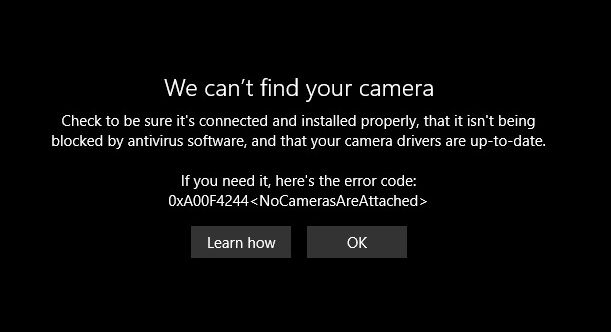
Errors that can be solved this way include the 0xA00F4244 error showing NoCamerasAreAttached. The Camera window will show the message “We can’t find your camera“.
A second frequent error in Windows 10 and Windows 11 relating to the webcam is error 0xA00F429F WindowsShowFailed. The message, in this case, is “Can’t start your camera“.
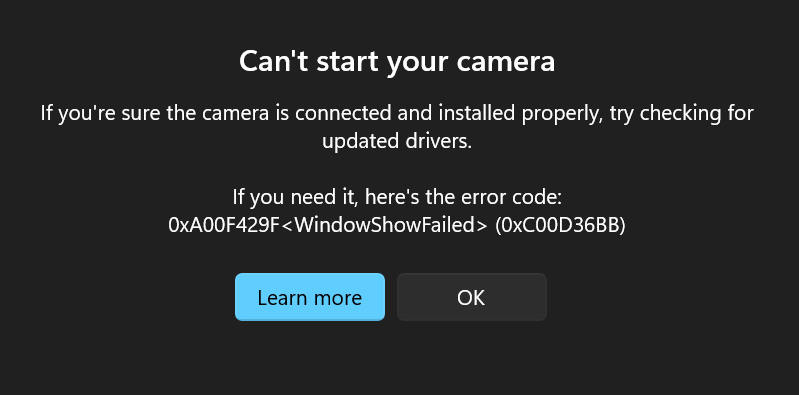
In most cases, this is an App access issue (permissions), but just run the troubleshooter to see if it can be fixed by Windows automatically.


I have a Logitech Quickcam Communicate STX (2 in fact!)Normally when it is plugged in, a blue light flashes on top, and it also does this when in use. Now, on one of them, when plugged in the light does not come on and thus not ‘recognised’ by my laptop. On the other, the blue light flashes very briefly, for about a second or so when plugged in, but is again not ‘reognised’ by the laptop. Anyone help?
@Andrea – Have your tries Toshiba’s own webcam application? I think they install an application along with the drivers.
If it is that new, I would first recommend taking it back of you can, since everything should be working when you buy it.
One thing you can try though is to download the webcam driver and software and reinstall it. The webcam download for the T135 series is available on the Toshiba website. That will ensure you have the latest driver. (the download can take a while to actually start)
I just bought a laptop about two months ago and haven’t really messed around with the webcam until a few days ago, but when I went to test it on both Skype and MSN and even my laptop it shows a default picture. The web cam is built in and came installed. I have already reset the web cams settings to the defaults, but still im getting no picture. Im not sure whats going on! I have a Toshiba Satellite T135 with Windows 7. Can someone help?
@Sarbajit Moitra – Considering your error in Chrome, did you try reinstalling shockwave?
So if you do not have any browser open, and you use the webcam in Skype, what happens?
@Angie – All your symptoms are the result of the latest msn update, as outlined in previous comments as well.
The only option is to reinstall an older msn version or wait for Microsoft to come with a next update that has similar functions.
Maybe a combi messenger like Trillian could still work, but I have not tried that yet.
oh Also! Sorry to double post, but when people see that i have a Webcam an they try to send me an invite to my own cam, it auto declines it. I don’t know if thats any help but its something i forgot to add in that post.
Angie
I’m also having the same problems with it only being able to do Video calls when i don’t want video calls i just want single video again like before, before i reinstalled Vista ultimate 64-bit it was fine an i had the same operating system. But now i’ve reformatted my system an stuff reinstalled msn etc an my cam (Creative Live! Notebook Pro VF0250 *i know its for laptops but its always worked for me*) i believe it is, it doesnt wanna do just a single vid call, i’ve tried reinstalling an even reinstalling msn i have everything up to date just this is getting on my nerv.
Any help would be highly appreciated!
Angie
have lenovo g560 laptop and it has built in webcam.when offline i can capture video or photos through it. but when want to turn on the cam while video chatting mozilla, internet explorer, google chrome every browser crashes. i can see other people but they cant see me or hear me. i m using windows 7 home premium. please help me out otherwise i cant video chat.in google chrome it says shockwave player plugin crashed.
i have lenovo g560 laptop and it has built in webcam.when offline i can capture video or photos through it. but when want to turn on the cam while video chatting mozilla, internet explorer, google chrome every browser crashes. i can see other people but they cant see me or hear me. i m using windows 7 home premium. please help me out otherwise i cant video chat.
@kc – I would first try uninstalling the virtual cam software (please make sure you can reinstall it when required, from either a backup or the original installer).
And then make sure to configure the original webcam as the input device in Skype.
Hope that helps.
I am having an issue with my refurbished asus U50F webcam..It has Lifeframe bbut it is not in Device manager. It also has a usb installd program with Asus virtual cam also…Evrytime I use Skype one of the cameras clicks on but keeps going out..it turns on then off, the whole time. Anything I can do to fix this…removing one of them etc..?
@Mallaboro – Does the webcam have a microphone? Check your audio recording settings to see what recording device is selected and make sure it is not the webcam mic.
If the webcam does not have a microphone, it could be a driver problem. Windows 7 does not have drivers for all devices yet. Your audio device drivers are okay?
@Haley – What program are you using? If it is a messenger program, it could be the result of version differences. Ask the people you chat with to mention their program version to you. You will probably see that the ones that work all have a certain version, and the ones for which the webcam chat does not work will have a different version.
my web cam only works for certain people…how can I get it to work for all my contacts?
I’ve a problem if anyone would be kind enough to take the time to read and perhaps reply.
When I activate my webcam, I get a quiet yet fast paced beeping sound coming from my speakers. I’ve never had this problem before, but I recently built my new computer and am trying windows 7. The beeping occurs regardless of what program the webcam is being shown in. I’ve just tried it with a different camera (much worse camera) and the beeping is still there, although much slower.
Please contact me by email, you’ve my utmost appreciation.
@Orlando – The first thing that comes to mind is that some update corrupts the working of the webcam. HP normally has a scheduled update process, does she have that turned on?
The other option is the Microsoft Update process.
If the System Restore worked, that means some recent change was undone. So unless she made changes herself, it could be one of these update processes.
But most likely it is the webcam driver, so even if you don’t see the device, just find the original driver for her webcam on the HP support site and reinstall it.
Is there maybe a device in the “Other devices” category in the Device Manager?
Hi, Kyle.
My girlfriend has recently been having trouble with her integrated webcam and I was wondering if you could help us out.
Lately whenever she goes to use it, her light for the cam won’t go on, yet there will be sound coming from her end. Her cam will just appear either black or white. I told her to try uninstalling the driver from Device Manager, but her cam was no where to be found under any of the listings which I found odd, any idea why? I then had her do a system restore to see if it would fix the problem, and it did, but only temporarily for a couple days and then did it again this evening.
I even asked if she could test her webcam with another source (we use cam on AIM) like QuickPlay for example, but her computer no longer has QuickPlay so that was out of the question. What I’m not properly understanding here is why her cam won’t show up under Device Manager. She’s using an HP laptop with Windows Vista.
Any ideas on what could be going on and what she could do? If you need more information I’ll be glad to give you more detail, but for now that is the major problem.
I appreciate the help greatly.
@Scott – You should probably check the people that you chat with, if they have the newer version it probably does not work still.
If you can share the link to the older version on any file sharing service, I will add the link to the main article, and also see if I can host a copy on the website itself.
@Lucy – The sequence of installation (webcam driver, software and messenger) can even make a difference. If you are using a 32-bit version of Windows, you could also try SplitCam.
@ scott
ok thn i duno how to use rapid share so il wait for u 2 upload it n do send me the link…and i gues even if it dusnt work for all contacts..sumthings beter thn nuthing eh? thnx a lot..ny help is appreciated :)
I have Windows Live Messenger for a couple of years now, or however long it’s been out, and I also had MessengerPlus!Live, which I found out was infecting my laptop, which is intergrated with YouCam software. As soon as I uninstalled MessengerPlus!Live my webcam doesn’t let me webcam anymore, and only let’s me videocall.. But it freezes up as soon as it gets to the loading bit. I’ve tried uninstalling Windows Live Messenger, and reinstalling, but that doesn’t help. It’s definitely not the webcam, because the YouCam software still works when I click it separately, any ideas? It’s very frustrating!
hey,
yes he sent it to me and it fixed the problem, however i now have the problem where my webcam (view my webcam) option only works for a few contacts and not all. but video call works with all. probably because of msn versions conflicting.
i will upload the old msn to rapidshare soon for you guys.
@husna, im on win7, so changing os does not help.
@scott
did ur brother send u an earlier version?
ive been having this problem since a week now n its driving me nutss!!!!hav ny of u found a solution..??i tried downloadin the previous version from many websites but no luck!!wud installing windows 7 help?? i alreasy spent money buying windows vista home premium n installin it but the webcam stil didnt work…wud installin windows 7 help?? or ny other solutions?
@Noch / Scott /Rachael – Reinstalling will not help, unless you have the previous version available as a download.
From the Microsoft site I cannot find any previous download on this version unfortunately :(
The problem is that Microsoft deliberately took out the missing webcam functionality, so they would not want to support the previous version I fear.
I’ve got the same problem but why is it doing that. & how do I find an earlier version of windows live?
@noch
you have the same problem as me, you need to find a way to un-install msn and downgrade it to an earlier version. I am having my brother send me a portable version.
Scott
the program im using is MSN live messenger and i tried installing and uninstalling several times and still when i click on the little webcam icon it only starts a video call, not the two options it did before :S